
- Quick Start Guide for Gen1 S1070/S1080/S1090
- Pairing with the ASAHOM App
- Cutting & Reconnecting for Gen1 Waterproof Junction Box
- LED number setting for Gen1 Controller
- Cutting & Reconnecting for Gen 2 Waterproof Junction Box
- Quick Start Guide for Gen2 S1070/S1080/S2080
- Layout Setting for Gen2 Controller
- How to connect to Ethernet (Gen 2 S1080 S2080 only)
- Power extension cord
- Gen 1 T-splitter
- Power-T Connector
- Wire Clip / Screw Pack
- End Cap
- Gen 1 Waterproof Junction Box
- Wall-Mount Enclosure Kit
- Track-Mount Kit
- Gen 1 Light string extension cord
- Gen 1 Controller
- Fault Detection Module
- Gen 2 T-Splitter
- Gen 2 Waterproof Junction Box
- Gen 2 Light string extension cord
- Gen 2 Controller
- Dual Output vs. Single Output: Unlock Greater Flexibility for Your Permanent Outdoor Lights
- Why ASAHOM Permanent Outdoor Light Installations Over 200ft Need Extra Power Injection?
- The Simple, Secure Seal: Why ASAHOM's Waterproof Connectors Are a Game-Changer
- Unleash Your Creativity: How ASAHOM's Palette & Effect Combo Redefines Smart Lighting
- Why Your Outdoor Lights Stay Connected: The Truth About WiFi & Why ASAHOM Uses 2.4GHz
- Beyond Simple Splitting: How the ASAHOM T-Splitter Redefines Smart Lighting Control
- Redefine Your Night: The Power of Zone Control with ASAHOM
Pixel for Gen2 Controller
ASAHOM permanent outdoor lights support Pixel smart control, allowing you to customize the color and color temperature of each light. Effortlessly create festive, ambient, or dynamic lighting effects for any occasion.
Pixel mode
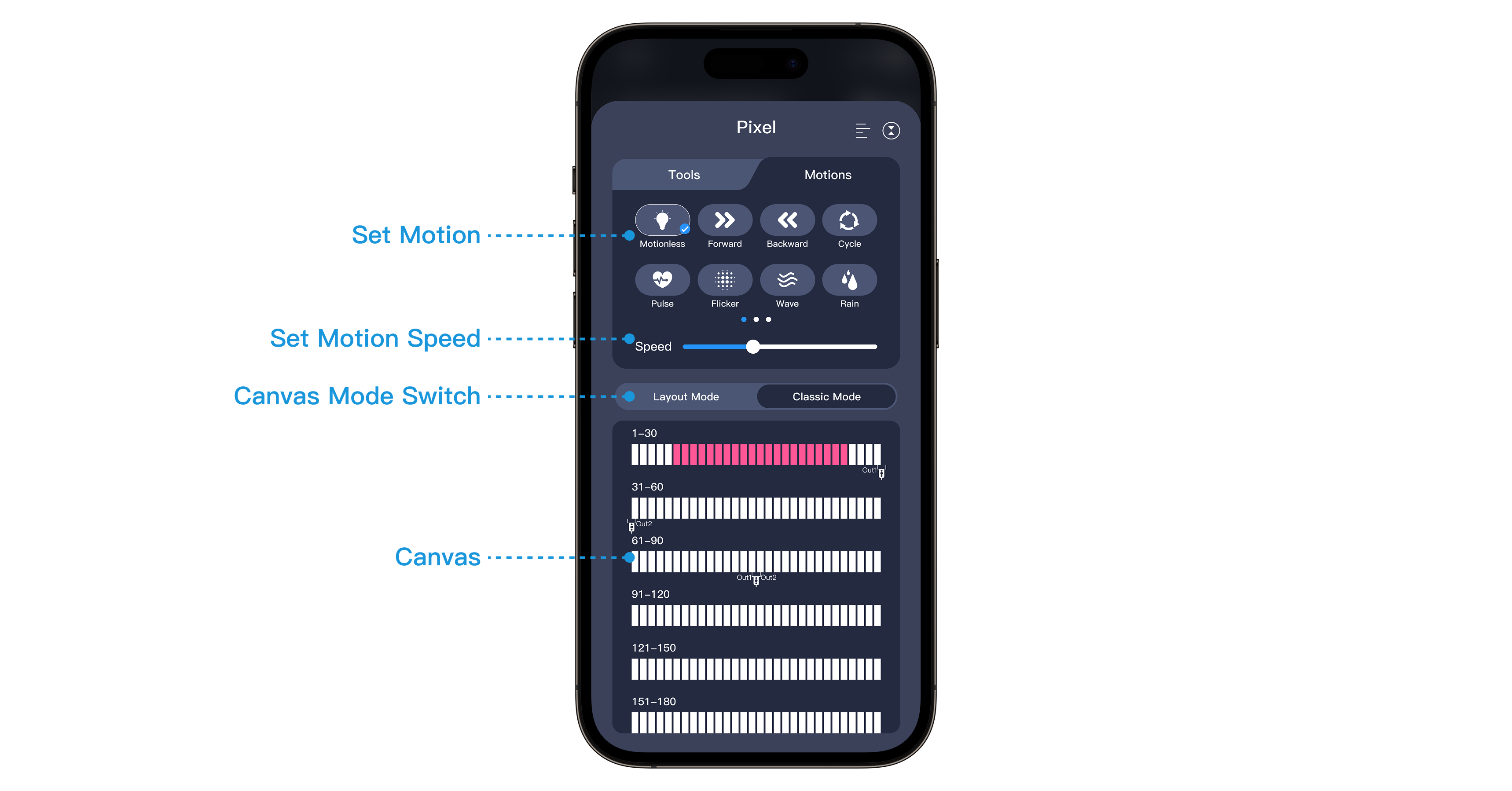
Interface Guide
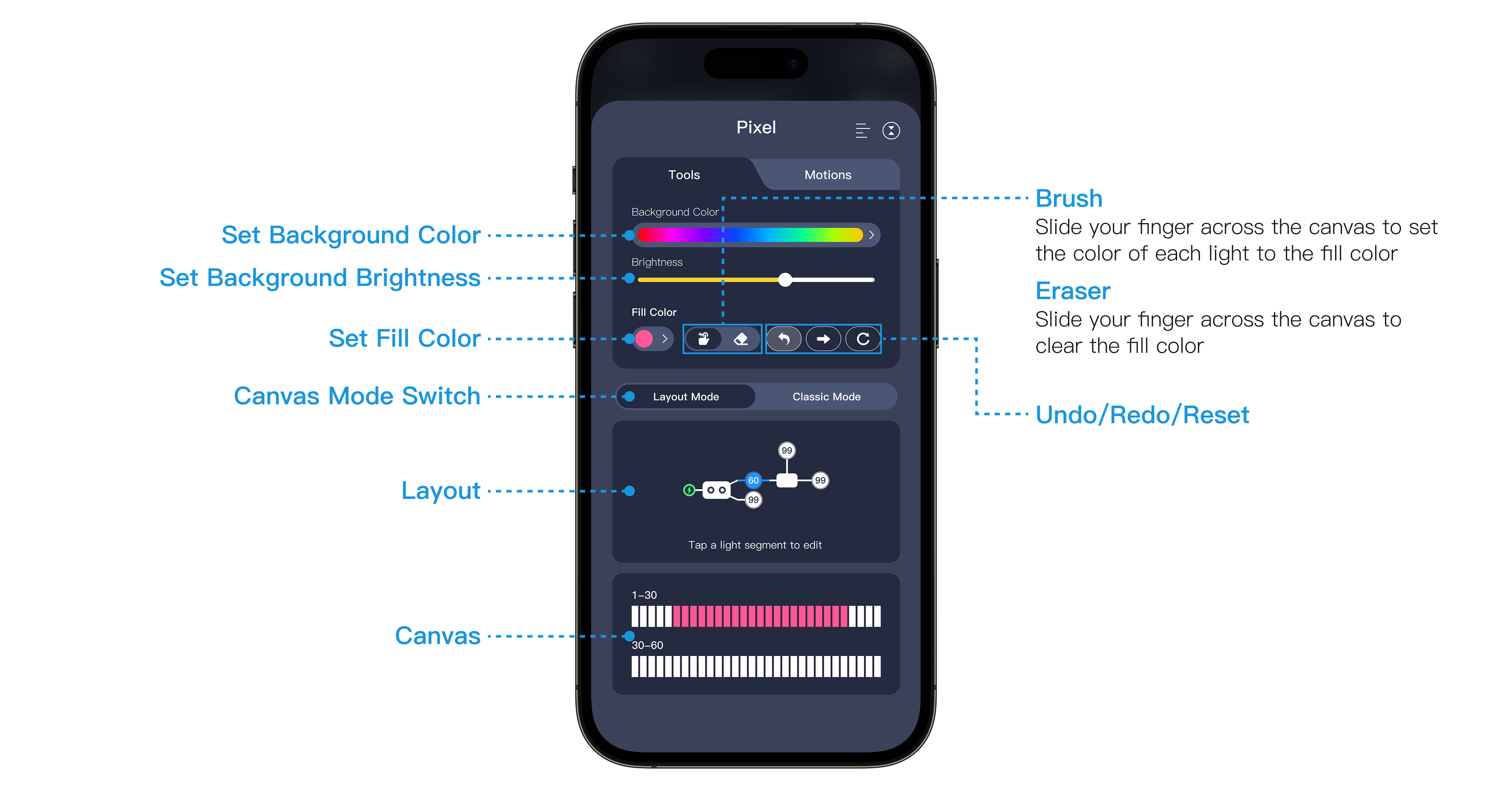
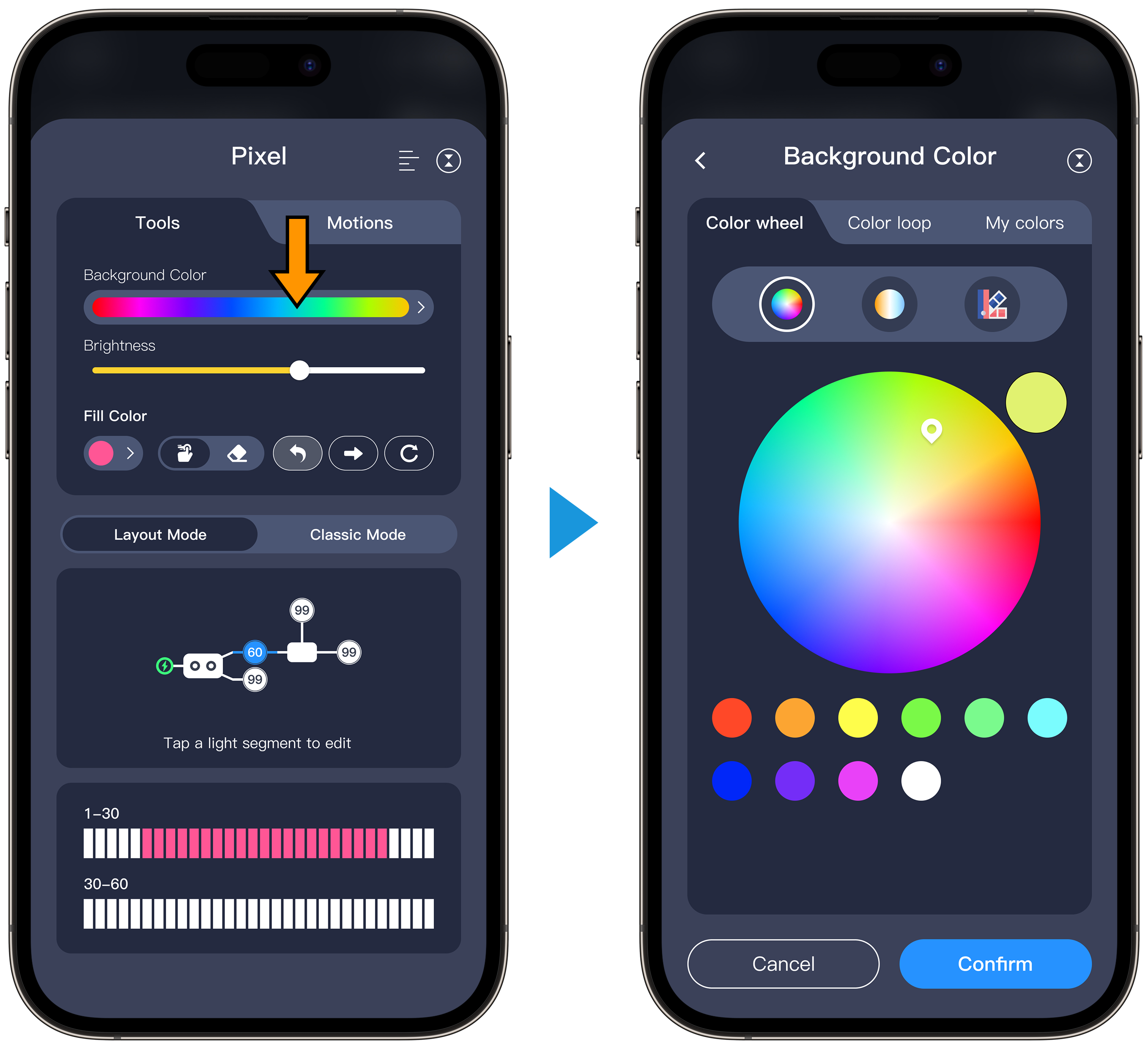
Background Color
Background color supports Color Wheel, Color Loop, and My Colors.
The Background Color feature lets you change all lights to a selected color. Then, you can use the Canvas feature to edit each light individually.
Layout Mode
In Layout Mode, the system automatically generates an installation layout based on your real-world setup. You can click any segment on the layout to edit the lights on that segment individually.
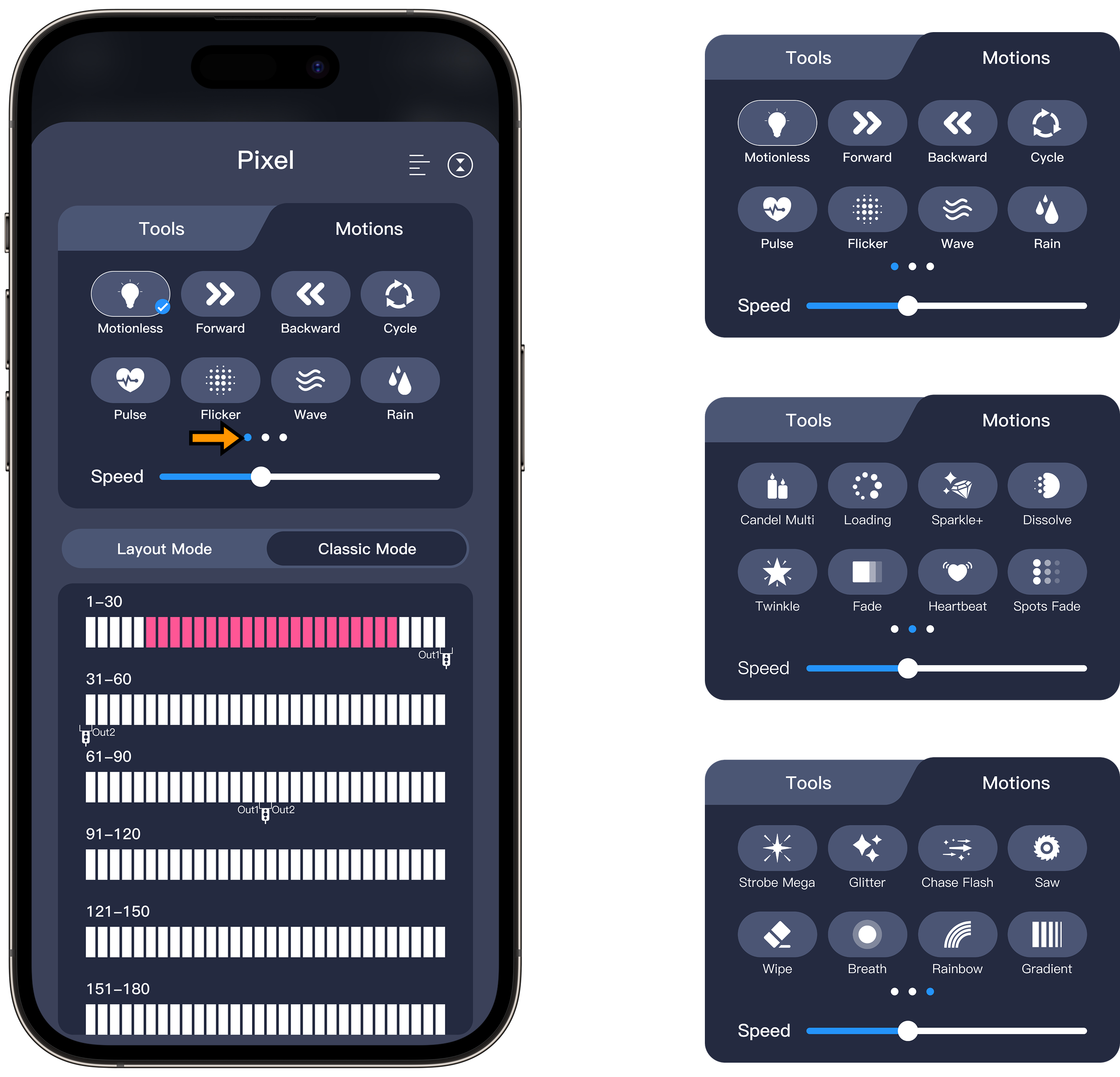
16 New Motions added
16 new motions have been added, each with its own unique character—easily adjust them to match your ambiance or mood.
Effortless LED Canvas Layout Switching
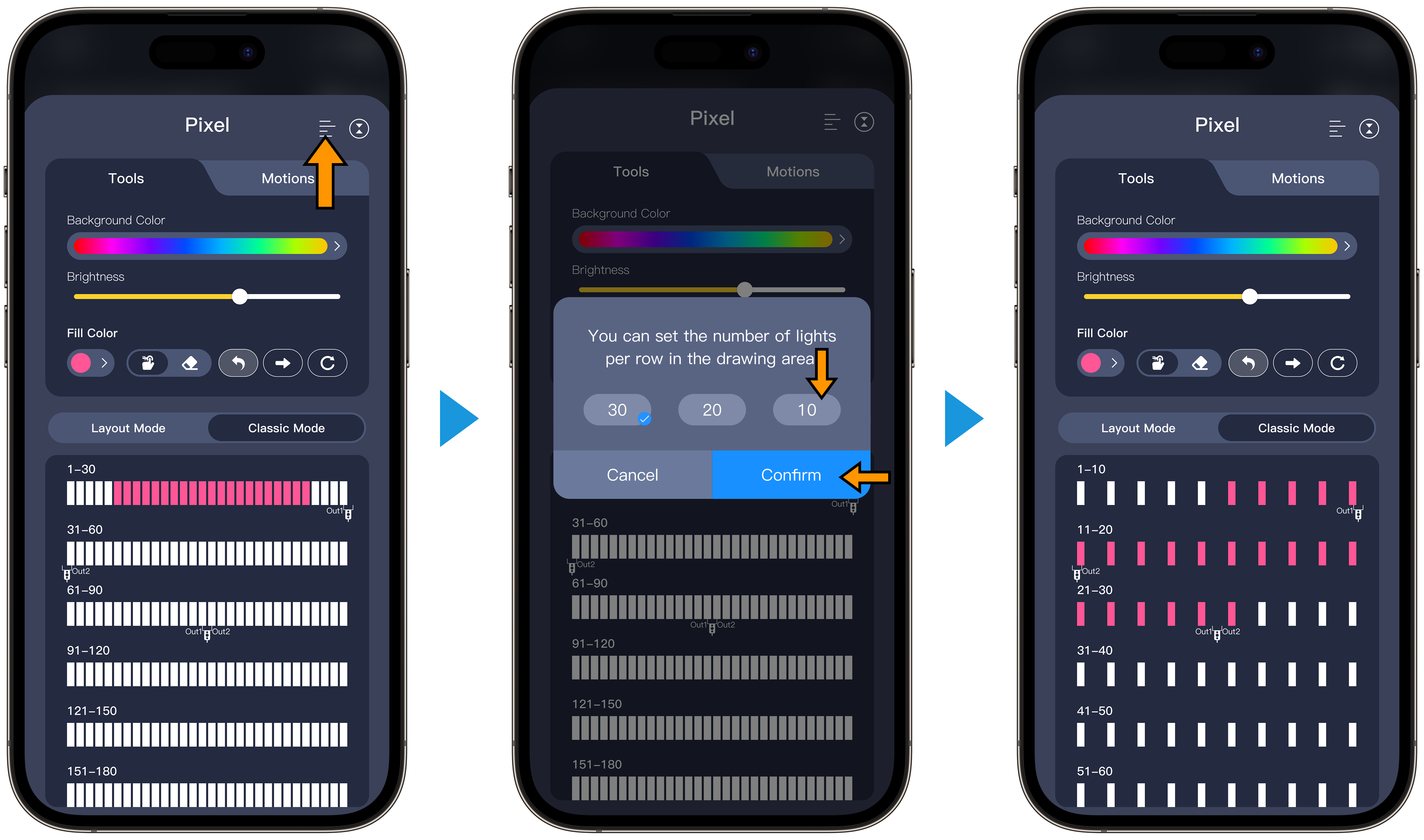
You can easily customize the LED Canvas layout to suit your needs. Just tap the “亖” button to instantly switch between three display modes:
30 LEDs/row: For long strings
20 LEDs/row: For medium strings
10 LEDs/row: For short strings or precise edits
FAQs
Q1: Why are the LEDs displayed out of order after switching layouts?
A1: Layout switching only changes how LEDs are shown in the app, not their actual physical order. If things look wrong, try restarting the app or checking your connections.
Q2: Will switching layouts erase my edits?
A2: No. Your color edits and doodles remain unchanged when you switch layouts.
Q3: What if the canvas loads slowly with many LEDs?
A3: Try using Compact mode (30 LEDs/row) for better performance, and make sure your app is updated.
Q4: Can I customize the number of LEDs per row?
A4: Only three preset layouts are supported (30/20/10 LEDs per row); custom row counts are not available yet.
Q5: Will my lighting effects remain after switching layouts?
A5: Yes, switching layouts does not affect your existing lighting effects.
Q6: How can I undo mistakes when editing LED colors?
A6: Use the Undo/Redo buttons to easily revert or repeat any step.
Updated on 18 Sep 2026
What are your Feelings?
Thanks for your feedback
- Choosing a selection results in a full page refresh.
- Opens in a new window.