
- Quick Start Guide for Gen1 S1070/S1080/S1090
- Pairing with the ASAHOM App
- Cutting & Reconnecting for Gen1 Waterproof Junction Box
- LED number setting for Gen1 Controller
- Cutting & Reconnecting for Gen 2 Waterproof Junction Box
- Quick Start Guide for Gen2 S1070/S1080/S2080
- Layout Setting for Gen2 Controller
- How to connect to Ethernet (Gen 2 S1080 S2080 only)
- Power extension cord
- Gen 1 T-splitter
- Power-T Connector
- Wire Clip / Screw Pack
- End Cap
- Gen 1 Waterproof Junction Box
- Wall-Mount Enclosure Kit
- Track-Mount Kit
- Gen 1 Light string extension cord
- Gen 1 Controller
- Fault Detection Module
- Gen 2 T-Splitter
- Gen 2 Waterproof Junction Box
- Gen 2 Light string extension cord
- Gen 2 Controller
- Dual Output vs. Single Output: Unlock Greater Flexibility for Your Permanent Outdoor Lights
- Why ASAHOM Permanent Outdoor Light Installations Over 200ft Need Extra Power Injection?
- The Simple, Secure Seal: Why ASAHOM's Waterproof Connectors Are a Game-Changer
- Unleash Your Creativity: How ASAHOM's Palette & Effect Combo Redefines Smart Lighting
- Why Your Outdoor Lights Stay Connected: The Truth About WiFi & Why ASAHOM Uses 2.4GHz
- Beyond Simple Splitting: How the ASAHOM T-Splitter Redefines Smart Lighting Control
- Redefine Your Night: The Power of Zone Control with ASAHOM
Gen 1 Controller
At glance
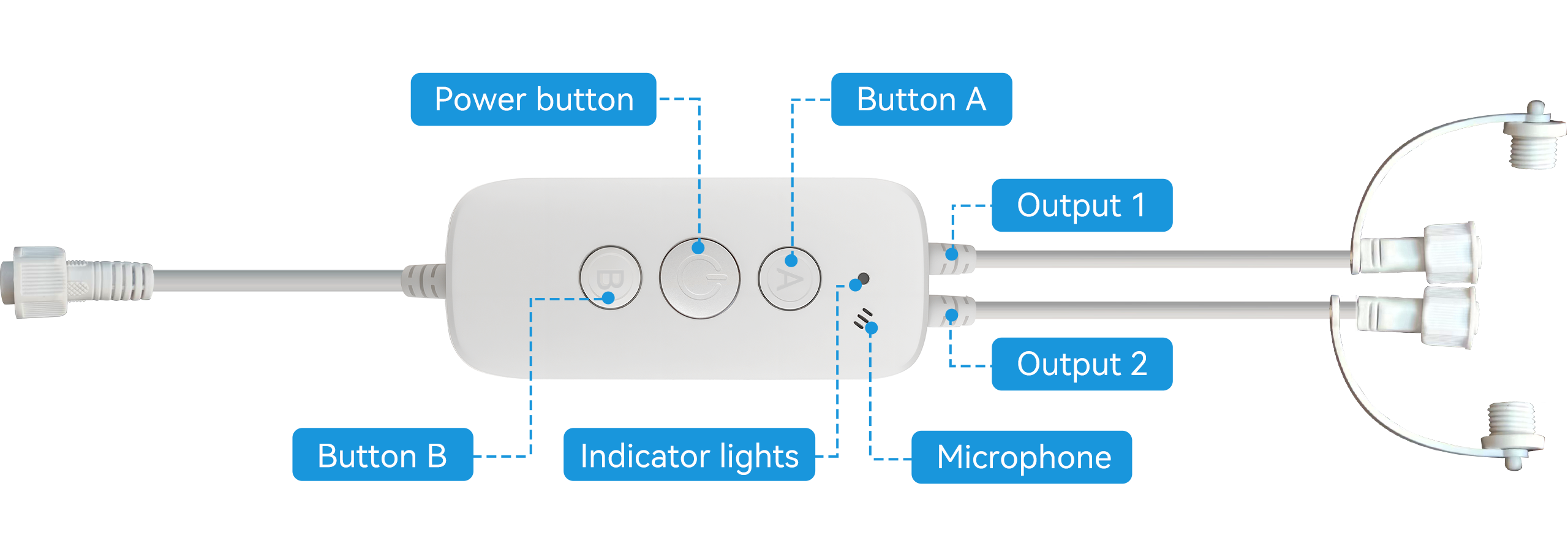
Button Functions
-
ON/OFF Button: Press briefly to turn the lights on or off. Press and hold for more than 5 seconds to restore factory settings.
-
A Button: Single press to change the color.
-
B Button: Single press to switch between different lighting modes.
Indicator Light
-
Blinking blue: Device is in pairing mode
-
Solid blue: Device is successfully connected to the network
Microphone
-
During installation, make sure not to block the microphone opening to ensure optimal sound pickup.
-
When the Audio Reactive feature is enabled and the device is picking up sound, keep the sound source as close to the microphone as possible for the best lighting response.
Dual Output
FAQs
A1: What do the blue light/indicator statuses mean on the control box?
Q1: Blinking blue: Waiting for Wi-Fi pairing or connection;
Solid blue: Device is connected to the network;
No light: Device is powered off or malfunctioning.
A2: How do I pair the control box with the mobile app?
Q2: Press and hold the pairing button (usually the ON/OFF button) for more than 5 seconds until the blue light blinks. Then, add the device in the app and follow the instructions to complete pairing.
A3: What if the control box cannot connect to Wi-Fi or the indicator does not light up?
Q3: Check if the power supply and outlet are working properly.
Try restarting the control box; reset and re-pair if necessary.
A4: What should I do if the control box is damaged?
Q4: Disconnect the power immediately and stop using it. Contact customer service for repair or replacement.
Updated on 19 Sep 2026
What are your Feelings?
Thanks for your feedback
- Choosing a selection results in a full page refresh.
- Opens in a new window.