
- Dual Output vs. Single Output: Unlock Greater Flexibility for Your Permanent Outdoor Lights
- Why ASAHOM Permanent Outdoor Light Installations Over 200ft Need Extra Power Injection?
- The Simple, Secure Seal: Why ASAHOM's Waterproof Connectors Are a Game-Changer
- Unleash Your Creativity: How ASAHOM's Palette & Effect Combo Redefines Smart Lighting
- Why Your Outdoor Lights Stay Connected: The Truth About WiFi & Why ASAHOM Uses 2.4GHz
- Beyond Simple Splitting: How the ASAHOM T-Splitter Redefines Smart Lighting Control
- Redefine Your Night: The Power of Zone Control with ASAHOM
Studio - Palette
The palette system is at the heart of ASAHOM Permanent Outdoor Lights, enabling vibrant and dynamic color changes. Each palette maps seamlessly onto your lights, transforming your eaves instantly for holidays, parties, or daily decor.
Default Palettes: 65 Ready-to-Use Styles
We’ve curated 65 stunning palettes covering all occasions—from festive reds and greens to calming pastels. Apply any palette with a single tap for instant mood lighting.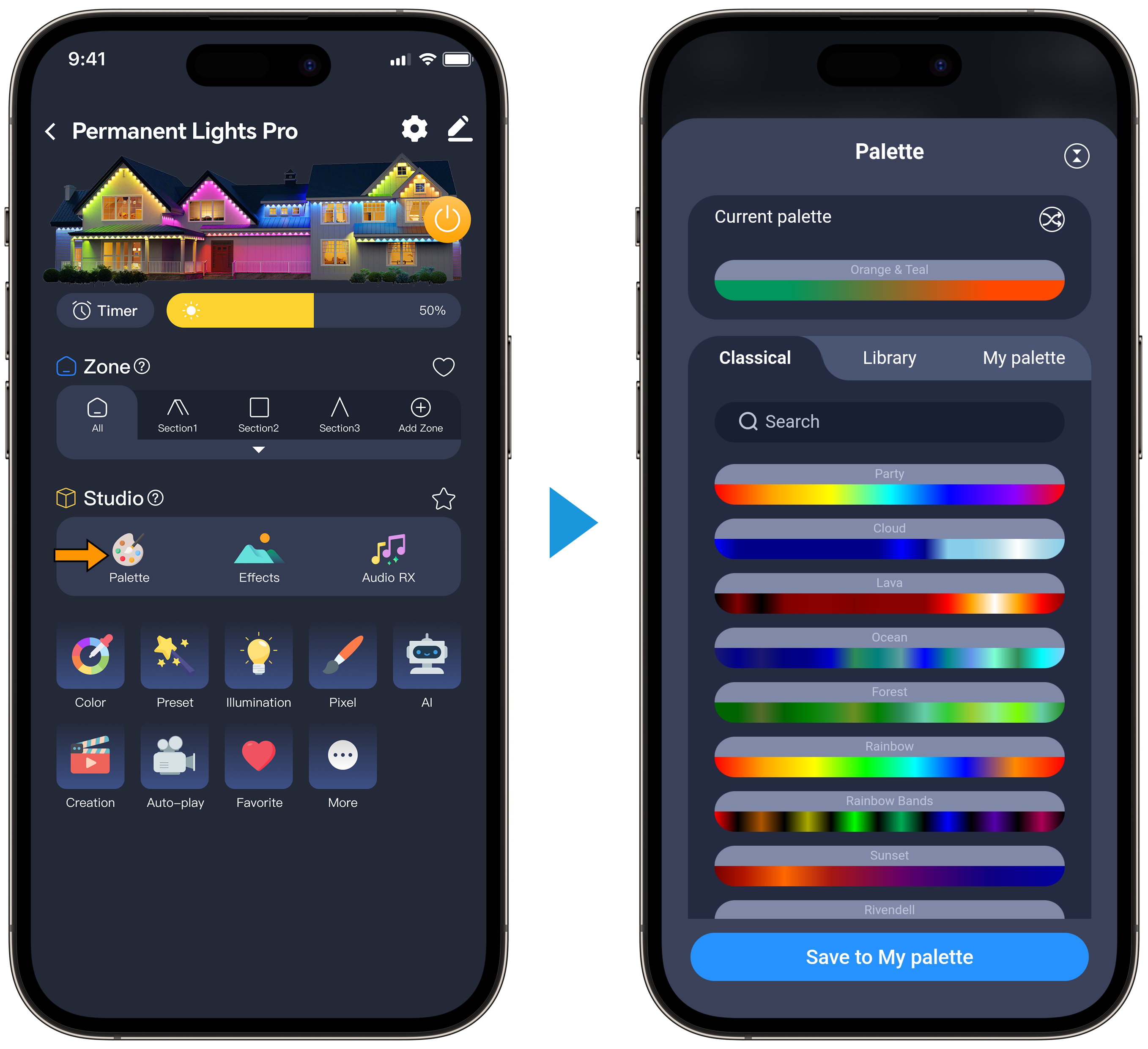
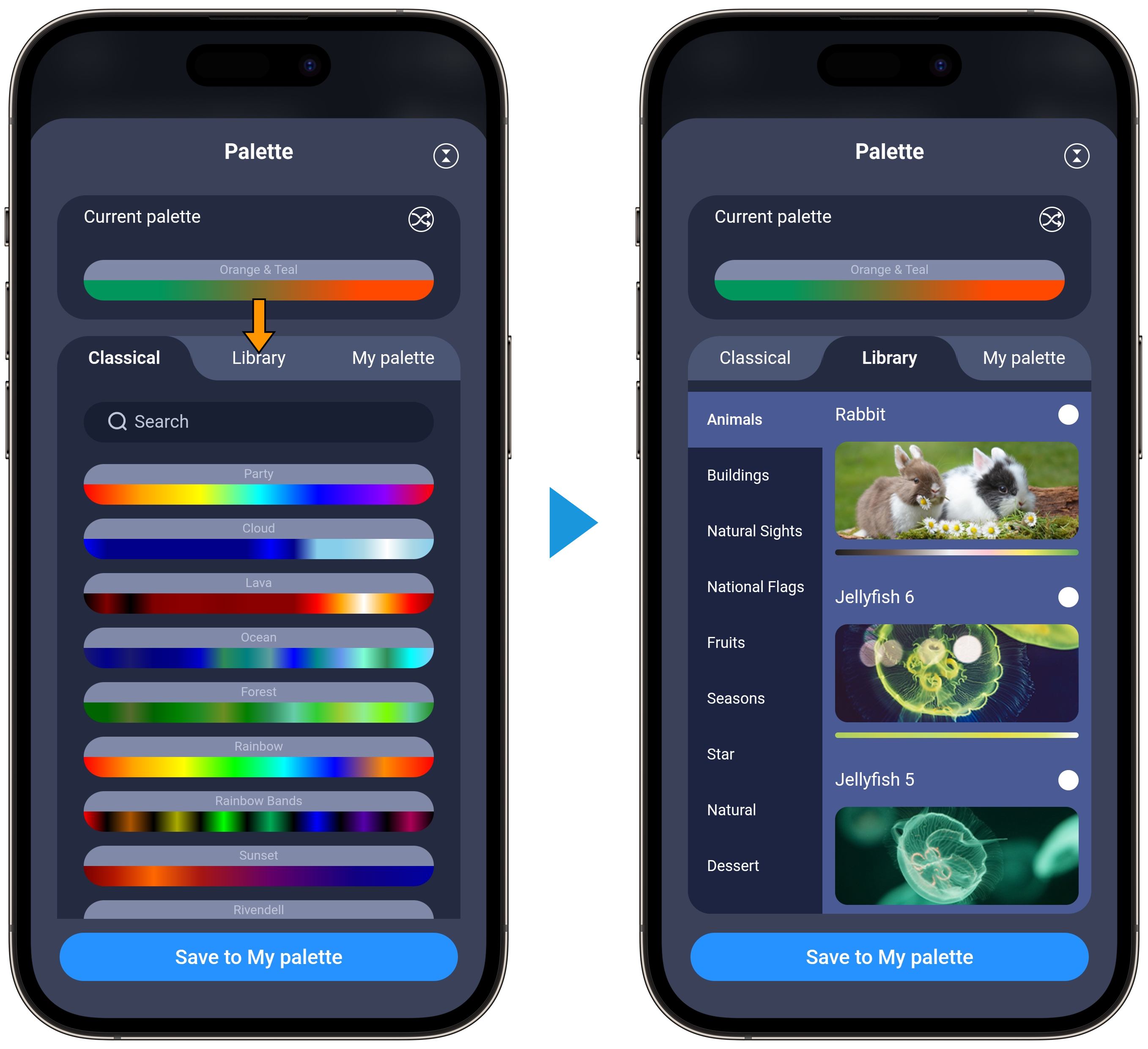
Color Library: 200+ AI-Generated Palettes
The Color Library, powered by ASAHOM AI, offers over 200 pre-built palettes from curated images. Soon, you’ll be able to upload your own photos to generate custom palettes—bringing your creative ideas to life.
Need something special? Contact us to customize palettes with help from the ASAHOM development team.
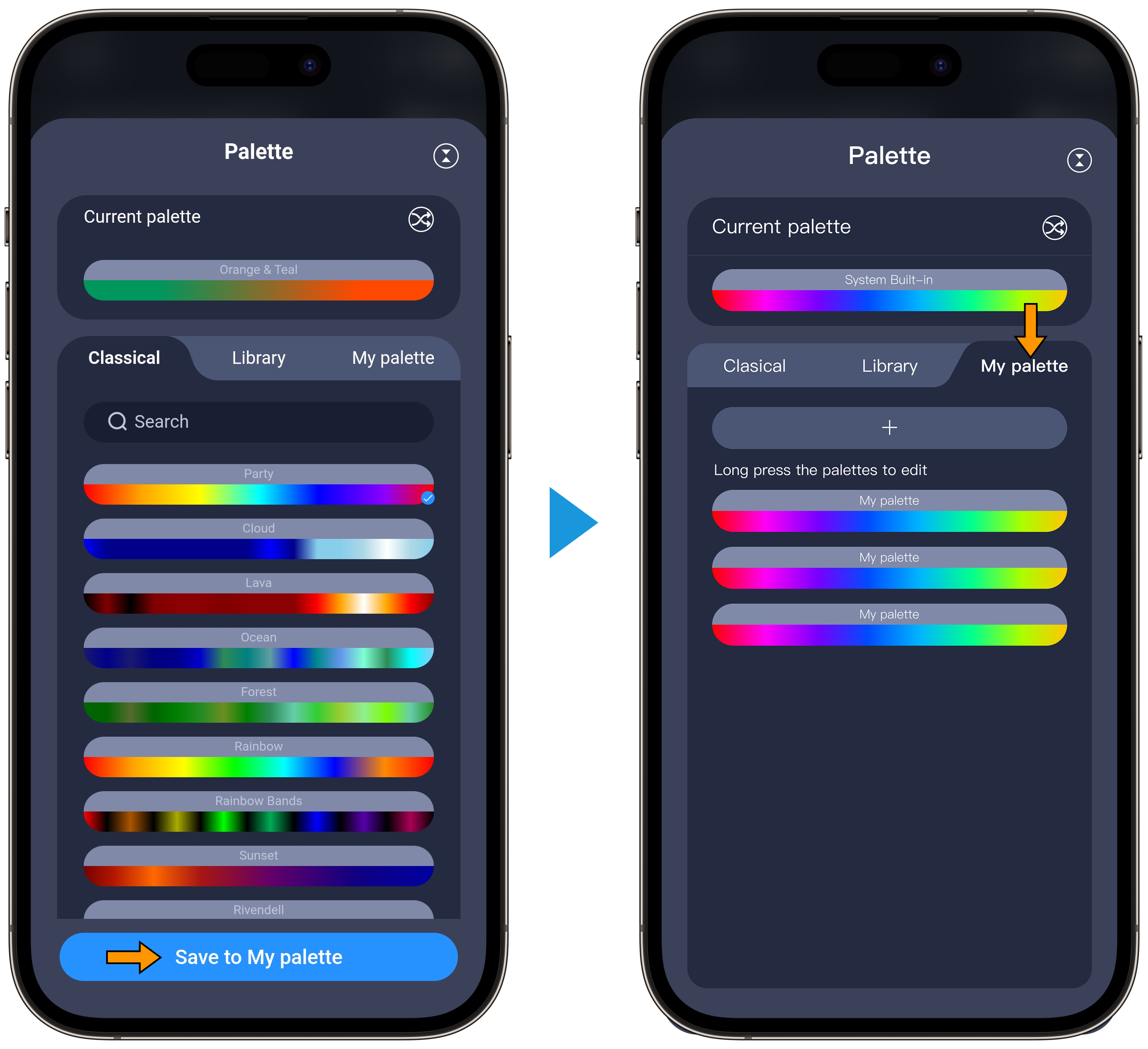
Save to Your Color: Create a Personal Collection
Add your favorite classic color palettes or color libraries to "My Palettes."
How to use:
|
1. Tap the “Save to My Palette” button after choose a palette.
2. Find them in "My Palettes."
|
Tip: Click on the color block to open the color value input window. You can enter HEX, RGB, or HSV values for precise color adjustment—making it easy to fine-tune your palette.
Custom Palettes: Your Creativity, Your Colors
Design your own palettes to create unique lighting experiences.
How to use:
1. Tap the “+” button to start creating a new palette.
2. Add anchor points and choose your preferred color for each one to shape the gradient.
3. When you’re done, tap “Save” to apply your personalized palette.
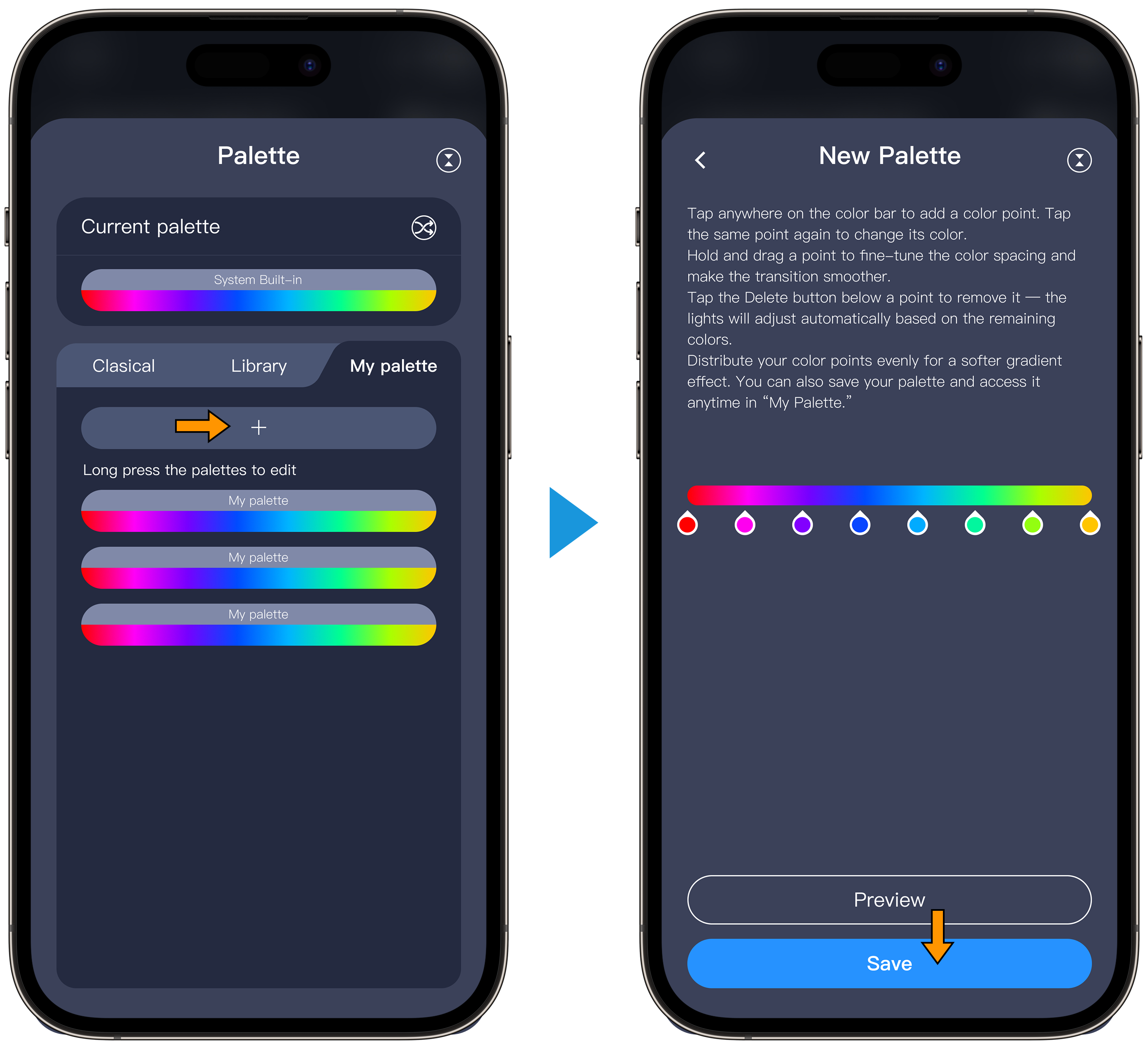
Tip: Click on the color block to open the color value input window. You can enter HEX, RGB, or HSV values for precise color adjustment—making it easy to fine-tune your palette.
How to Edit Custom Palettes
To modify a custom palette:
1. Long-press the palette you want to edit.
2. A menu will appear on the right with options: Pin to Top, Edit, and Delete.
3. Tap Edit to open the palette editor and make your changes
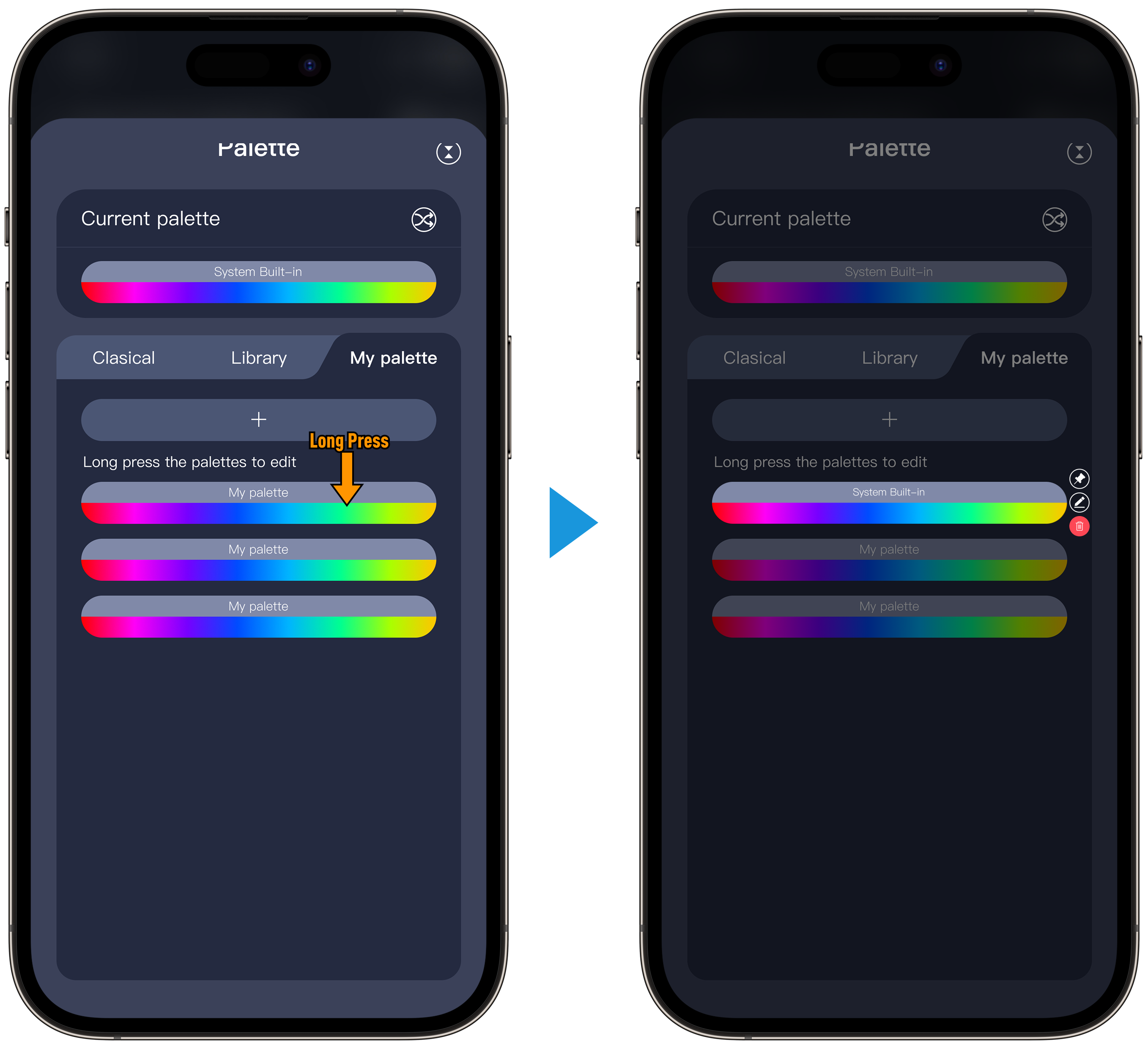
Tip: Use Pin to Top for quick access to your favorite palettes.
The system's built-in palette does not support editing.
FAQs
Q1: Why can’t I apply a palette to some effects?
A1: Not all effects support palettes. The effect selector in the App will show a note if a palette cannot be applied.
Q2: How many custom palettes can I create?
A2: There is no fixed limit for custom palettes, but too many may affect App performance on older phones.
Q3: Can I edit or delete a custom palette?
A3: Yes. Long-press the palette to access options for Pin to Top, Edit, and Delete.
Q4: Why does my palette look different on the lights compared to the App preview?
A4: The screen preview may differ slightly from the actual lights due to LED characteristics and installation layout.
Q5: Can I use HEX, RGB, or HSV values for precise colors?
A5: Yes. Tap a color block in the palette editor to open the color value input window.
Q6: Will my custom palettes sync across devices?
A6: Yes, as long as you log in to the same ASAHOM account, your palettes will sync automatically.
Bonus Tip
Combine Audio RX with your favorite palette for an even more dynamic light show!
Updated on 18 May 2026
What are your Feelings?
Thanks for your feedback
- Choosing a selection results in a full page refresh.
- Opens in a new window.